
WebView
This guide covers how to integrate the Kard Rewards WebView in your mobile or web application.
Introduction
Kard’s Rewards WebView provides a turnkey front-end offers experience, complete with a rewards map and intuitive offer discovery for their users. Issuers can integrate Kard’s WebView seamlessly into their existing experiences allowing them to launch and iterate on their rewards program quickly and easily.
It is designed to be embedded in:
- Mobile apps via native WebView components (iOS WKWebView, Android WebView, React Native WebView)
- Web applications via iframe
Environment URLs
Query Parameters
token (required)
A JWT authentication token that identifies the user and organization.
Required JWT claims:
The token is used for API authentication when the WebView makes requests to Kard services.
theme (optional)
A base64url-encoded JSON string containing design token overrides for customizing the appearance. Uses RFC4648 base64url encoding which is URL-safe (uses - instead of +, _ instead of /, and omits padding). No encodeURIComponent is needed when using base64url encoding.
Structure:
Color & theme tokens (styles.light / styles.dark)
These tokens are mode-dependent and can differ between light and dark themes:
All color values must be valid CSS color values (hex, rgb, hsl, oklch, named colors, etc.).
Layout tokens (styles.layout)
These tokens are mode-independent and apply to both light and dark themes:
Font weight tokens (styles.layout)
The WebView applies a named weight to each text role. These tokens are mode-independent and each value is a numeric weight string ("100" through "900"):
Only use weights your font actually loads. Setting h1FontWeight to 700 when fontFamily.weights is ["400", "600"] leaves the browser to synthesize a fake bold, which usually looks worse than the real 600.
labels (optional)
The labels property within the theme parameter allows customization of page titles displayed in the WebView. All label properties are optional — if not specified, the default values are used.
layout (optional)
The layout property within the theme parameter controls the visibility of page sections. All layout properties are optional — if not specified, the default values are used.
fontFamily (optional)
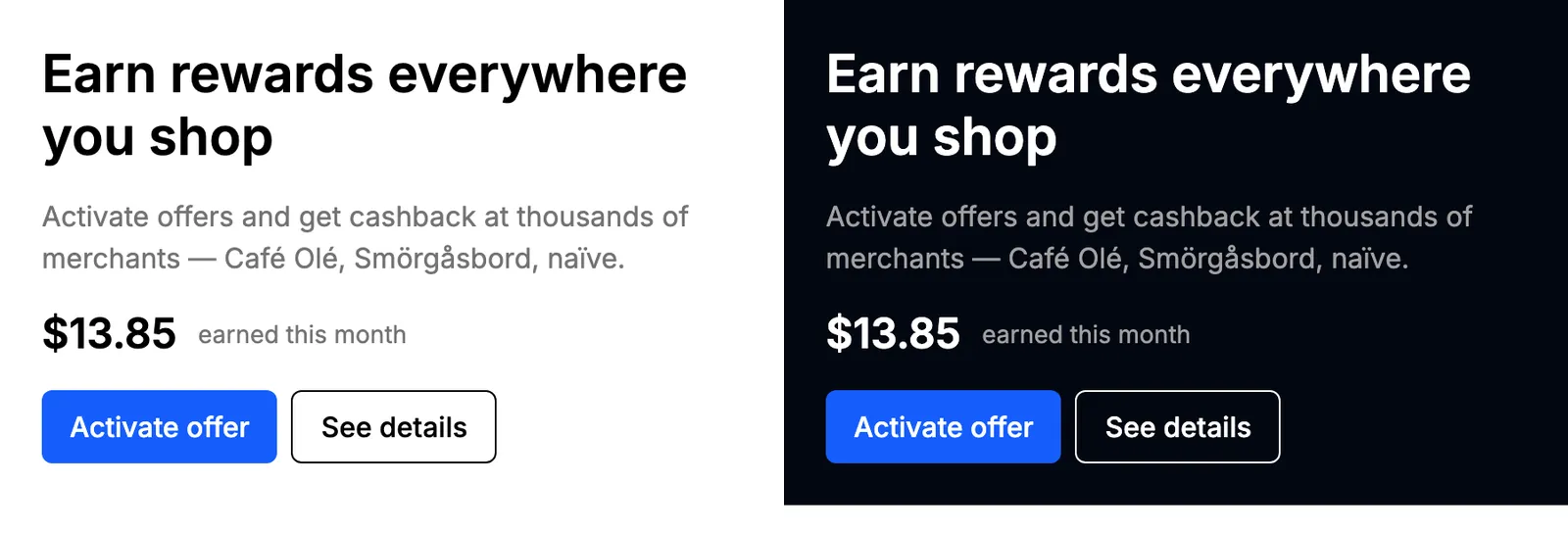
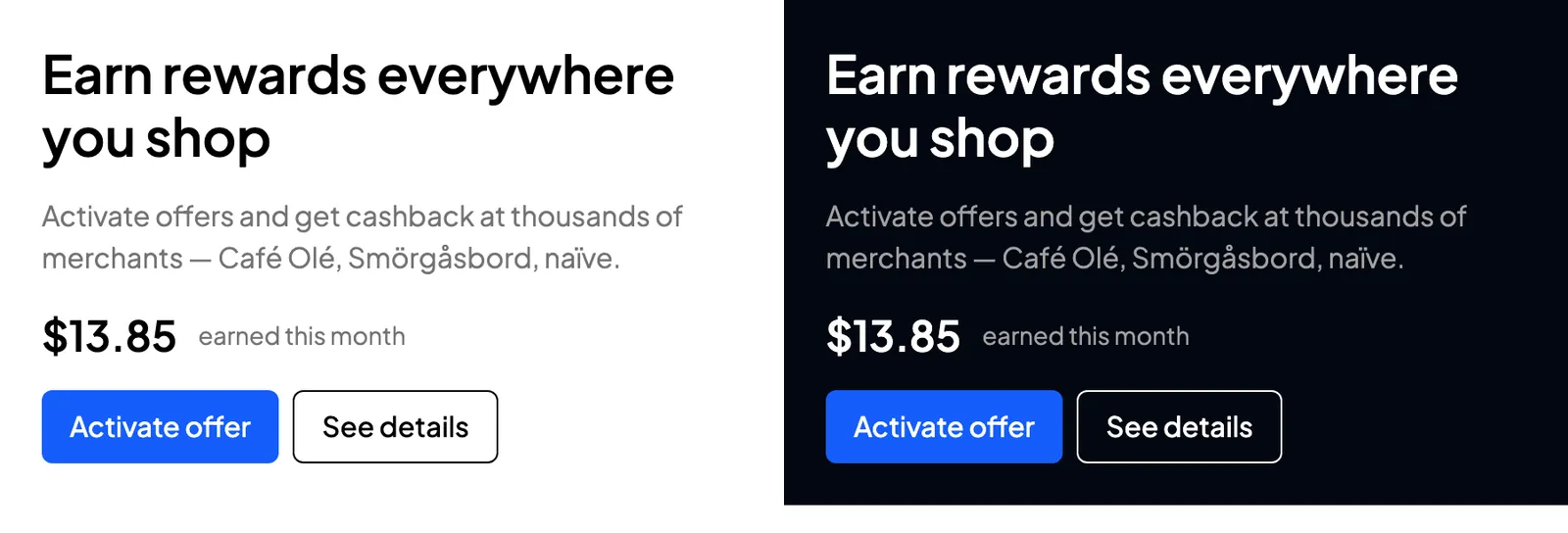
The fontFamily property within the theme parameter replaces the UI font. The WebView emits the font’s <link> tags while server-rendering the page and points its internal --font-sans variable at your family, so the first paint already uses your font, with no flash of the default one. Omitting fontFamily loads Inter.
The same UI on the default font, then with fontFamily set to Plus Jakarta Sans, each shown in light and dark:
A Google font, loading only the weights the theme uses:
A self-hosted font:
For source: "custom", url must point at a stylesheet, not at a font file. The WebView loads it with <link rel="stylesheet">, so a URL ending in .woff, .woff2, .ttf, .otf, or .eot is rejected. Serve a CSS file whose @font-face rules reference your font files, over HTTPS, readable cross-origin from the WebView’s origin.
Whatever you configure, the WebView appends the platform sans-serif fallback stack behind it, so a font that fails to load falls back to the system UI font instead of blanking the page. To change the weight used for headings, body text, or buttons, set the font weight tokens in styles.layout, listed under the theme parameter above.
The theme parameter is validated as a single unit. One bad field discards all of the overrides in it and the WebView renders its defaults; overrides are never applied partially. fontFamily is the strictest part of the schema, so check these before shipping a theme: a comma or quote in a google family name, an http:// URL, a url that points at a font binary, and a missing url on a custom font are all rejected.
Standalone views
The root URL opens the full rewards experience. Every page inside it is also addressable on its own path, so a container can open one view directly: a push notification that lands on a single offer, a rewards tab that shows only the map, or a Kard placement carousel inside a screen you built yourself.
A standalone view is a path on the same base URL, and it reads the same query parameters as the root:
token is required on every view. theme is optional and behaves exactly as it does at the root, so colors, radii, labels, and fonts carry over unchanged.
Each view resolves its content for the user in the token and applies the same eligibility rules as the full experience. When the content is missing, expired, or not eligible for that user, the view renders a short unavailable message rather than an error page.
Plan for dismissal in the host. A standalone view has no bottom navigation, and a deep link is usually the first entry in the WebView’s history, so an in-page back control has nothing to pop. Give the user a native way out: a close button, a nav bar, or a sheet they can swipe away.
Opening a detail view can activate its content. When an offer or a batch slot carries an activation call-to-action, the WebView fires it as the page renders, without waiting for the user to press anything. Treat /offers/{offerId} and /placements/{placementId}/slots/{slotId} as actions rather than previews: don’t prefetch them, and don’t load them in a hidden WebView to warm a cache.
Offer details
A single offer’s detail page. Deep link to it from push notifications, emails, SMS, or banners that promote one offer.
The page is server-rendered with the issuer’s theme and no entrance animation, so it paints immediately with no loading flash.
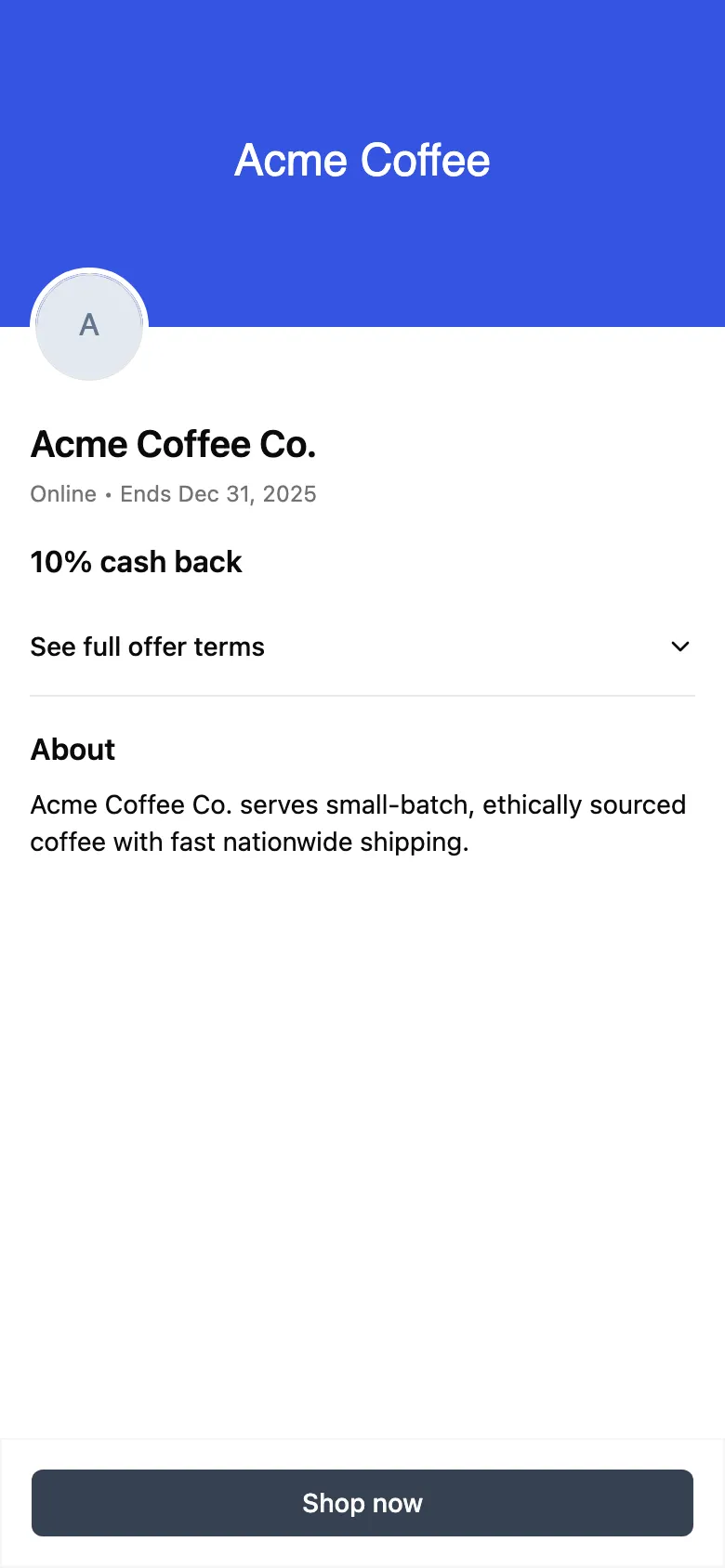
Eligibility is enforced per user — the offer only renders if it’s available to the user identified by the token. If the offer is unavailable (for example, it has expired or the user isn’t eligible), a graceful “offer not available” message is shown instead.
Attribution source
When a cardholder opens the offer detail page, the WebView fires image impression pixels for the offer’s assets. By default those impressions are attributed to in-app browsing (BROWSE). When you deep link straight to an offer from a campaign — an email, a push notification, a map pin, or search — add the optional source query parameter so the impression is attributed to how the user actually arrived:
The WebView normalizes the value (it is uppercased) and overrides the medium on each tracking image URL before the pixels fire.
The source parameter is case-insensitive — email, Email, and EMAIL are equivalent. Any value outside the set above falls back to BROWSE. The parameter only affects attribution analytics; it does not change which offer is shown or whether it is eligible.
Placement
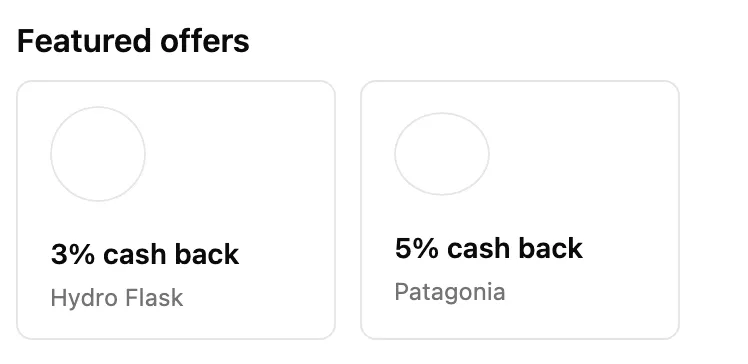
One placement’s carousel and nothing else: no page header, no detail panel. Use it to place a Kard carousel inside a screen you own. The placement’s display name becomes the section title, falling back to “Featured offers” or “Activate cash back” (as in the screenshots below) when that name hasn’t resolved.
A placement holds one of two kinds of content, and the carousel follows whichever it returns.
Standard offers. One card per offer, each showing the merchant and its reward.
Batch activation slots. One card per slot, each standing for a bundle of offers the user turns on together.
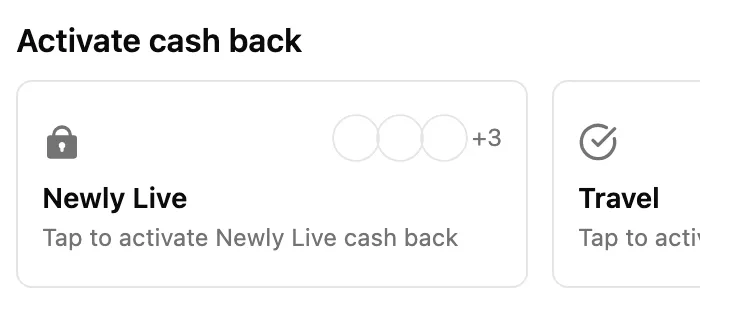
Batch activation
A batch-activation placement groups offers into slots. A slot is a named bundle — “Travel”, “Dining” — holding the offers that resolve for that user under the slot’s content strategy. The user activates the bundle rather than each offer in it: activating a slot turns on every offer inside, and those offers then appear in the user’s main offers list.
Each slot card carries a lock icon while the slot is waiting to be activated and a check once the user has an active activation, along with a cluster of the bundle’s offer logos and a +N count for the ones that don’t fit.
Activation runs on a cycle. The placement’s refreshInterval (an ISO-8601 duration such as P7D) sets how long one lasts, so a slot’s expiresAt is its lastActivatedAt plus that interval. Once it passes, the slot goes stale and the user activates it again to pick up the next set of offers. A slot that has expired but resolves to no offers stays active on purpose, so your UI never invites a user to refresh into an empty bundle. Slots on a group placement have no activation cycle at all — they stay active and act purely as a grouping.
Handling taps
Since this view has no detail panel, it hands taps back to you instead of navigating. On each tap the WebView posts a PLACEMENT_ITEM_CLICKED message through the same channel it uses for location (window.KardWebview.postMessage, or the iframe parent):
payload.type is offer for a standard offer and placement for a batch slot. Respond however you like: open your own screen, or load the offer details or placement slot details view for that ID.
Placement slot details
The detail page for one batch activation slot: the slot’s name and artwork, the activation copy, and every offer in the bundle under an “Included offers” heading. Both IDs are required, since the slot is resolved inside the placement named in the path. Like offer details, the page is server-rendered, so the slot is already in the initial HTML.
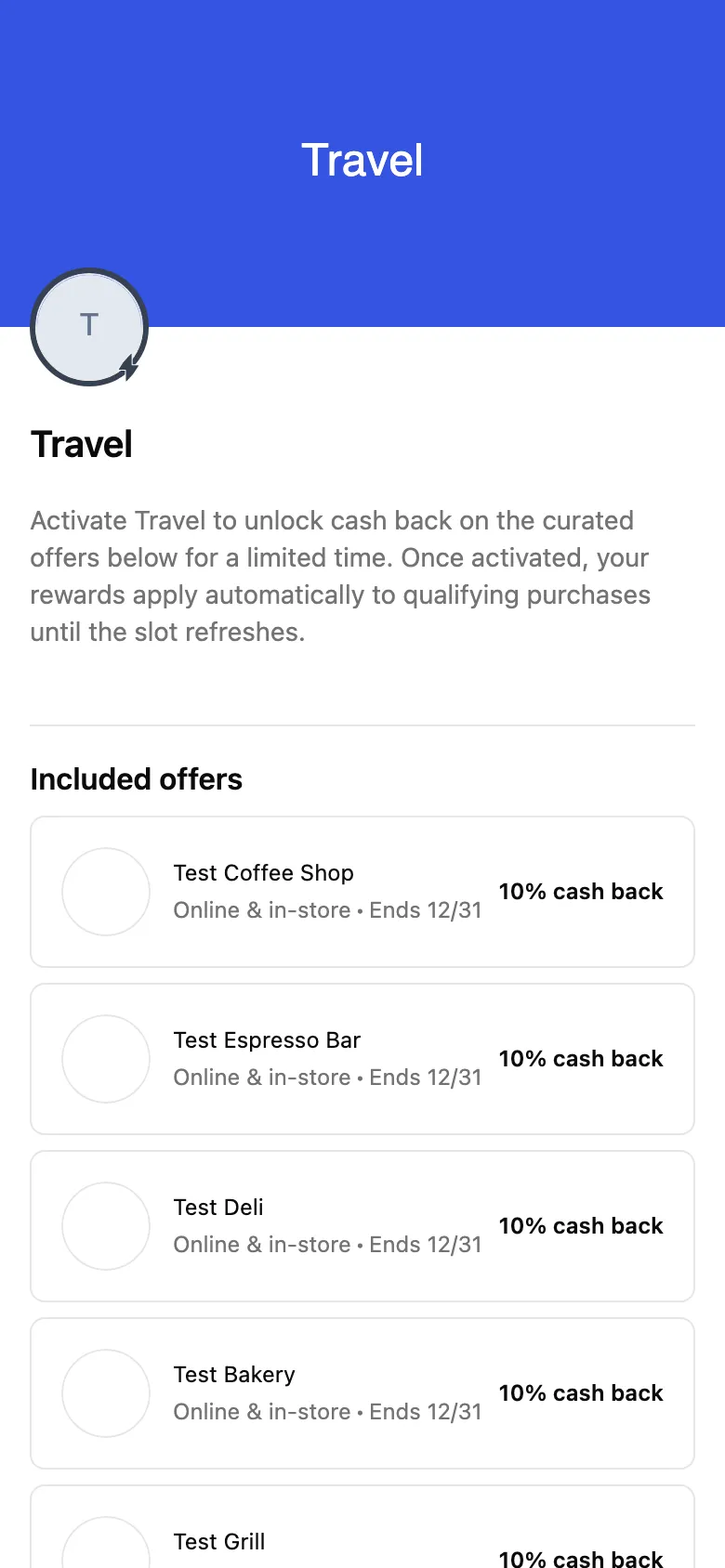
An unknown, expired, or ineligible slot renders an “Activation not available” message.
Rewards history
The user’s earned cash back: a total, 12M / 6M / 3M / YTD timeframe filters that rescope it, and the reward list split into pending and settled sections, grouped by month and paged as the user scrolls. There are no path parameters — the user comes from the token.
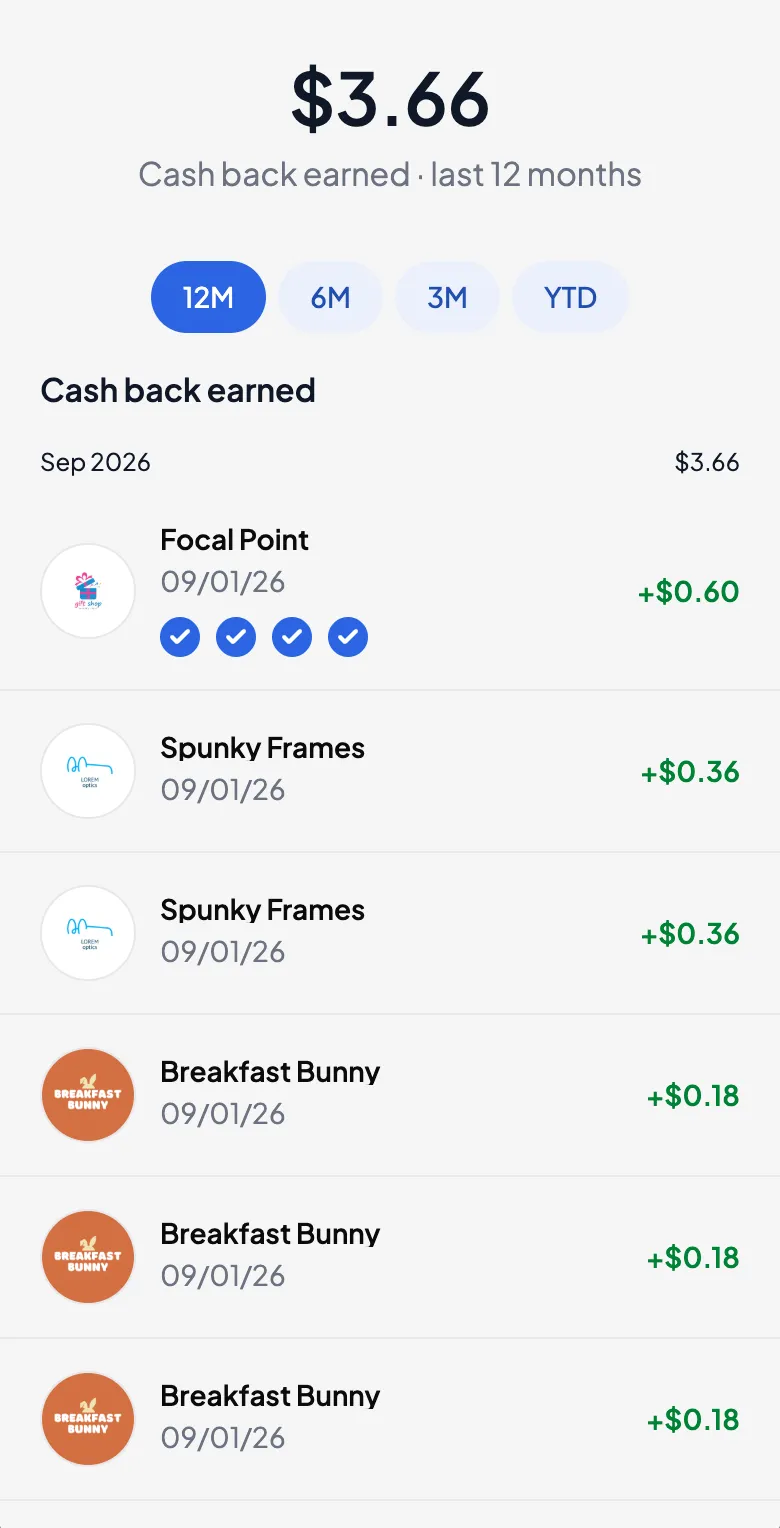
This view drops the back button that the in-app version shows, since the host owns dismissal on a deep link.
Map
The nearby offers map: a pin per offer location around the user, a list of the same offers sorted by distance, and a “Redo search in this area” control once the user pans away from where the results were fetched. Phone widths show one at a time with a header button to switch; at desktop widths the list and the map sit side by side.
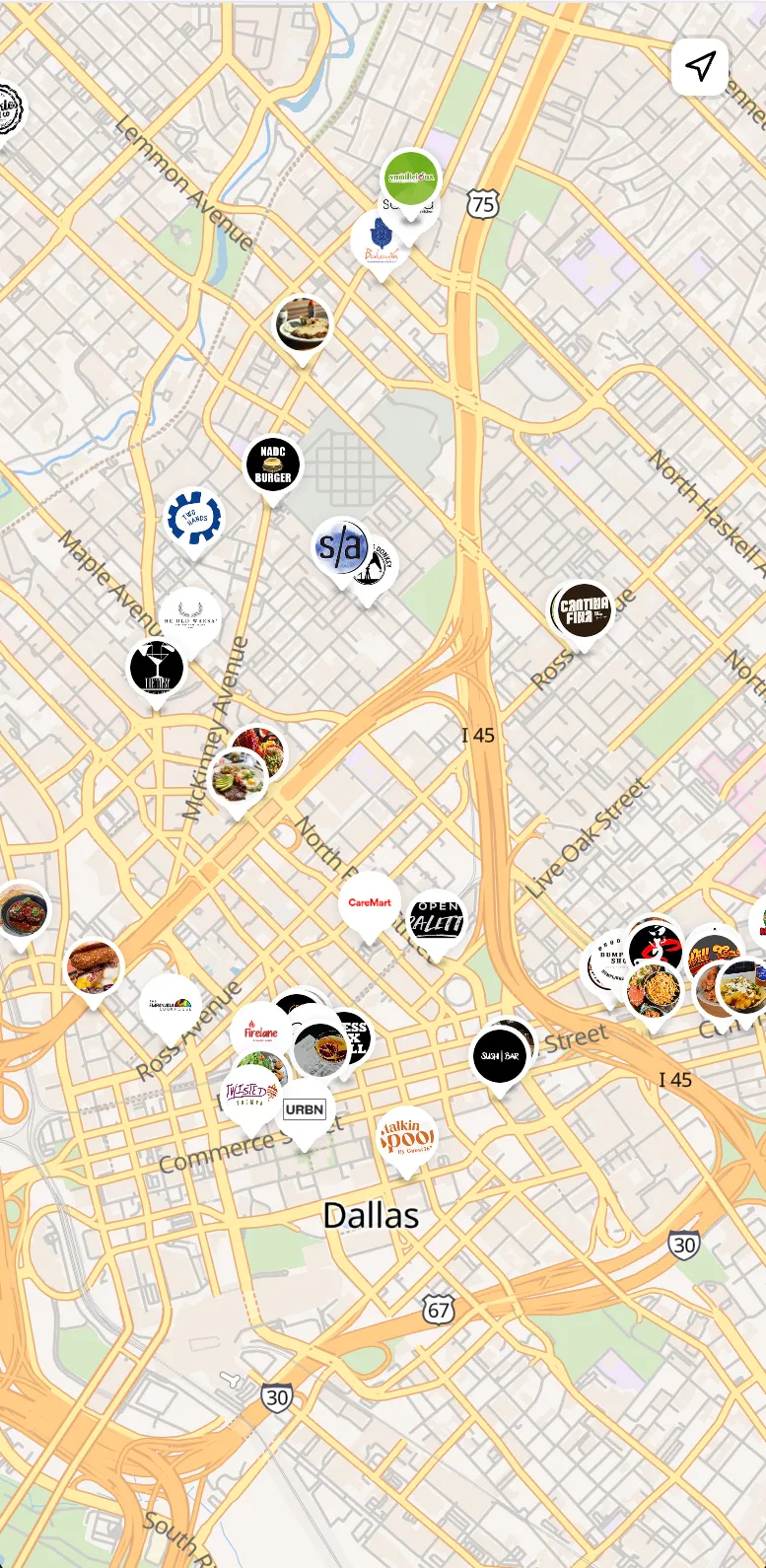
This is the only view that needs the location bridge. It asks the container for coordinates on load and stays in its loading state until it gets an answer, so the container must reply to every REQUEST_LOCATION (see Location Message Passing Contract).
Two behaviors specific to this view: its back arrow navigates to the root rewards experience with the query parameters preserved, so a user who opened /map directly can still reach the full experience from it. Set layout.showMapBackButton to false to hide it. And layout.showMap only controls the map section on the rewards page — it does not affect this route.
Fetching a WebView JWT Token
The Kard SDK provides methods to generate WebView tokens. The SDK is available in multiple languages:
SDK Method:
This returns a signed JWT that should be passed as the token query parameter.
WebView tokens can also be generated via REST API. Refer to the API documentation for Get WebView Token.
Location Message Passing Contract
The WebView uses a message-passing protocol to request location data from the container application. This is required for the rewards map feature to display nearby offers.
The WebView intentionally does not time out while waiting for location — this gives the user unlimited time to respond to the OS permission prompt. Because of that, the container must always reply to every REQUEST_LOCATION with exactly one LOCATION_RESPONSE or ERROR — including when permission is denied, location services are off, or the underlying request fails. If the container never replies, the rewards map stays in its “Finding offers near you…” loading state indefinitely.
How the WebView selects a location source
When the map needs location, the WebView chooses a source in this order:
window.KardWebview.postMessage(orwindow.ReactNativeWebView.postMessage) — if present, the WebView sendsREQUEST_LOCATIONthrough it and waits for the container to post a response back. This is the path native containers use.- iframe parent — if the WebView is running inside an iframe (
window.self !== window.top), it postsREQUEST_LOCATIONtowindow.parent. navigator.geolocation— otherwise it falls back to the browser’s geolocation API.
Native iOS (WKWebView) and Android (WebView) containers must expose a window.KardWebview.postMessage function — a small bridge injected at document start (shown in the examples below). A bare WKWebView / Android WebView does not provide it, and navigator.geolocation is unreliable inside native web views, so without this bridge the WebView never asks the container for location and the map will not load. (window.ReactNativeWebView is also accepted for backwards compatibility — react-native-webview injects it automatically, which is why the React Native example below doesn’t add a bridge.)
Message Types
Request Format (from WebView)
When the WebView needs location data, it sends:
Success Response Format (to WebView)
When location is successfully retrieved:
Coordinate fields:
Error Response Format (to WebView)
When location cannot be retrieved:
Platform Integration Examples
React Native
iOS (Swift)
Android (Kotlin)
Android (Jetpack Compose)
Web (iframe)
Theming Resources
Below is an example showing how to apply custom branding: